New in ModelRoom
Project boardsCollect, arrange and review, together
Every project now comes with a shared board. Send the takes worth keeping from any room, set them next to references and briefs, and collect feedback from your team and clients on one link — without touching the rooms where the work was made.
The basics
What is a project board?
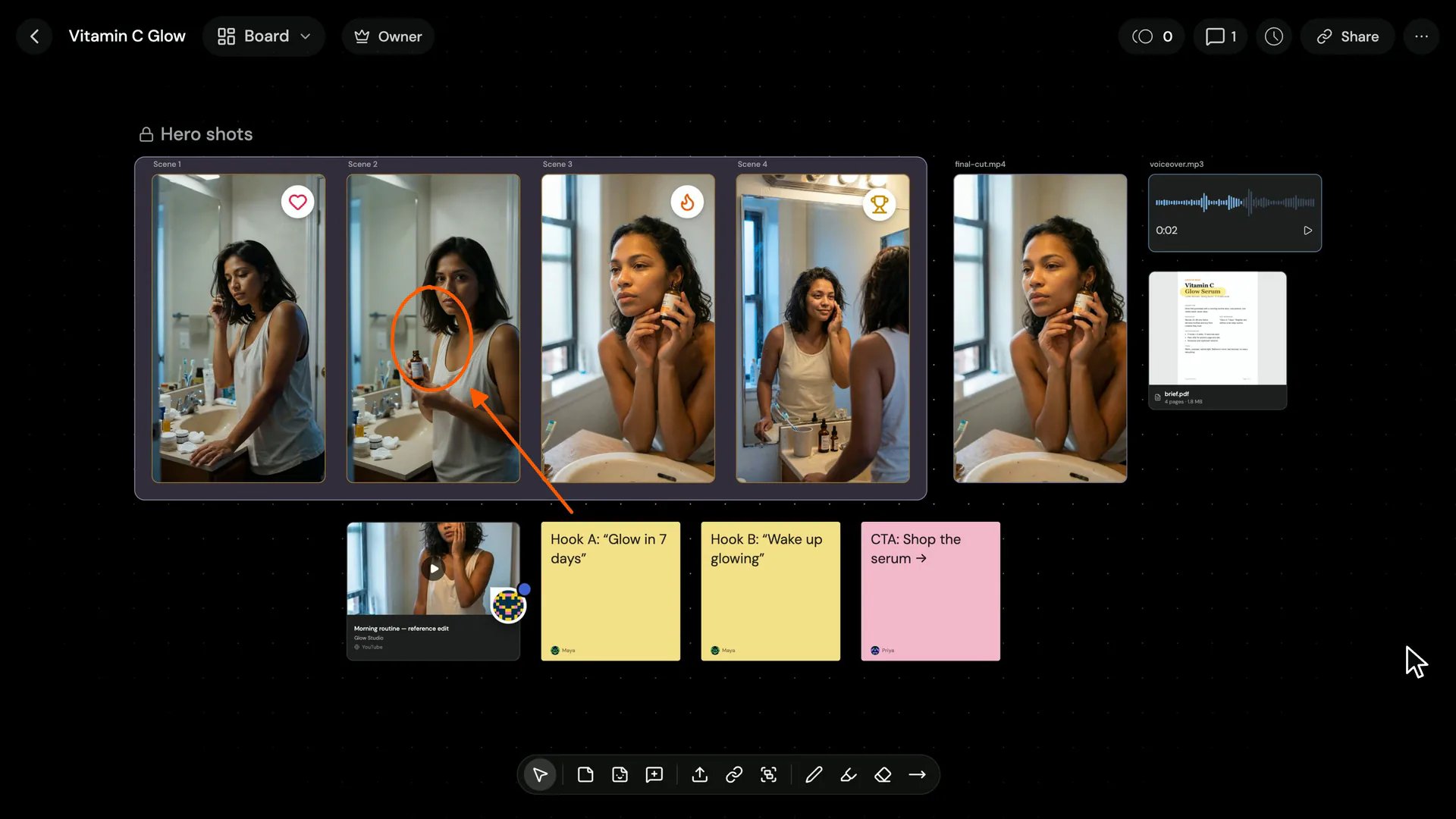
A project board is a shared canvas that belongs to a ModelRoom project. It holds snapshots of the images and videos made in the project’s rooms, alongside your own files, links and notes, so a team can lay out concepts, mark them up and agree on what ships.
Rooms are where you and the Room Agent build the work; the board is where you present and review it. Agencies running several accounts keep one board per client project, and every round of feedback stays attached to the takes it’s about.
01Collect
Send results from any room
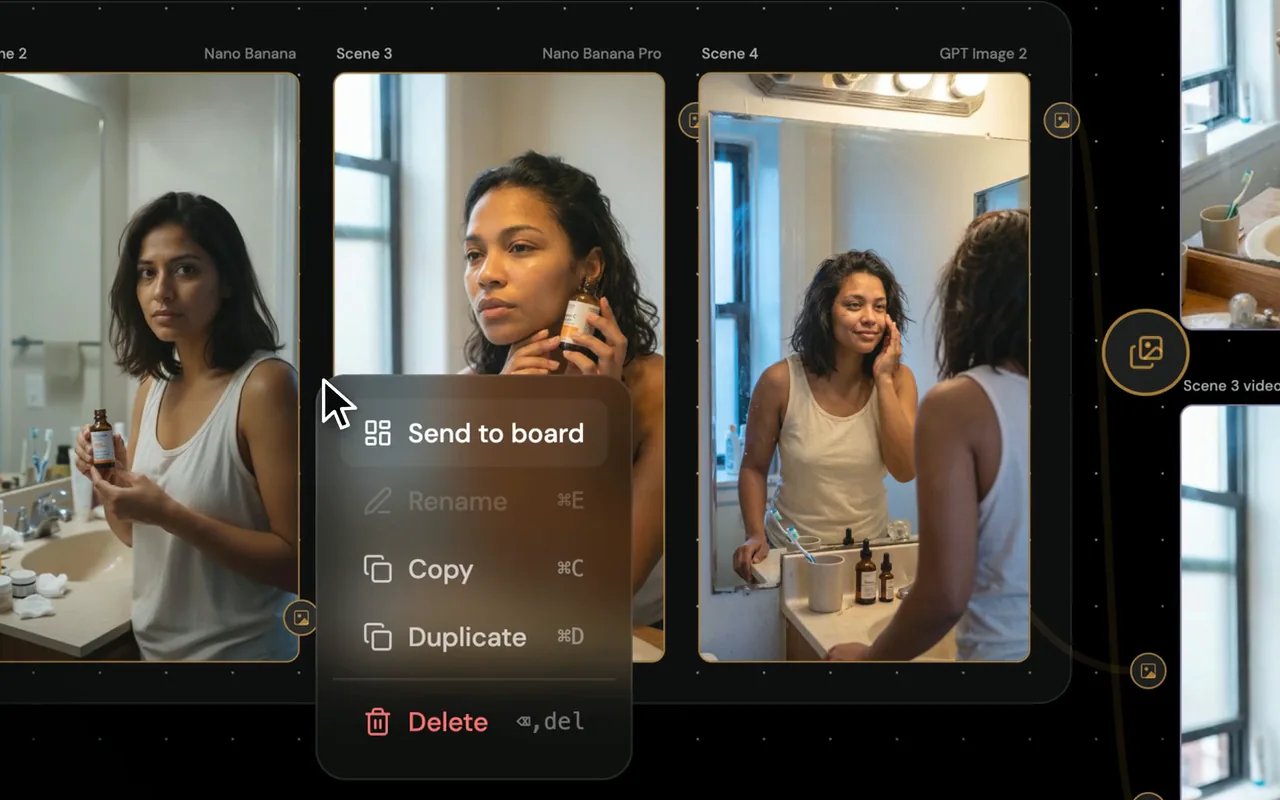
Pick the takes worth keeping on the canvas and send them to the project’s board in one click. Each one lands as a snapshot, so the room you’re building in stays exactly as it was.
Snapshots from every room
Images and videos from any room in the project, side by side on one canvas.
Your own files, dropped in
Upload images, videos up to 90 MB, audio, PDFs and text briefs — or paste them straight onto the board.
Links that play in place
Paste a YouTube, Vimeo, Spotify or SoundCloud link and it becomes a card that plays right on the board.
02Arrange
Group, snap and lock it in place
Lay concepts out the way you present them — by hook, by scene, by audience or by round of feedback.
Named, color-coded groups
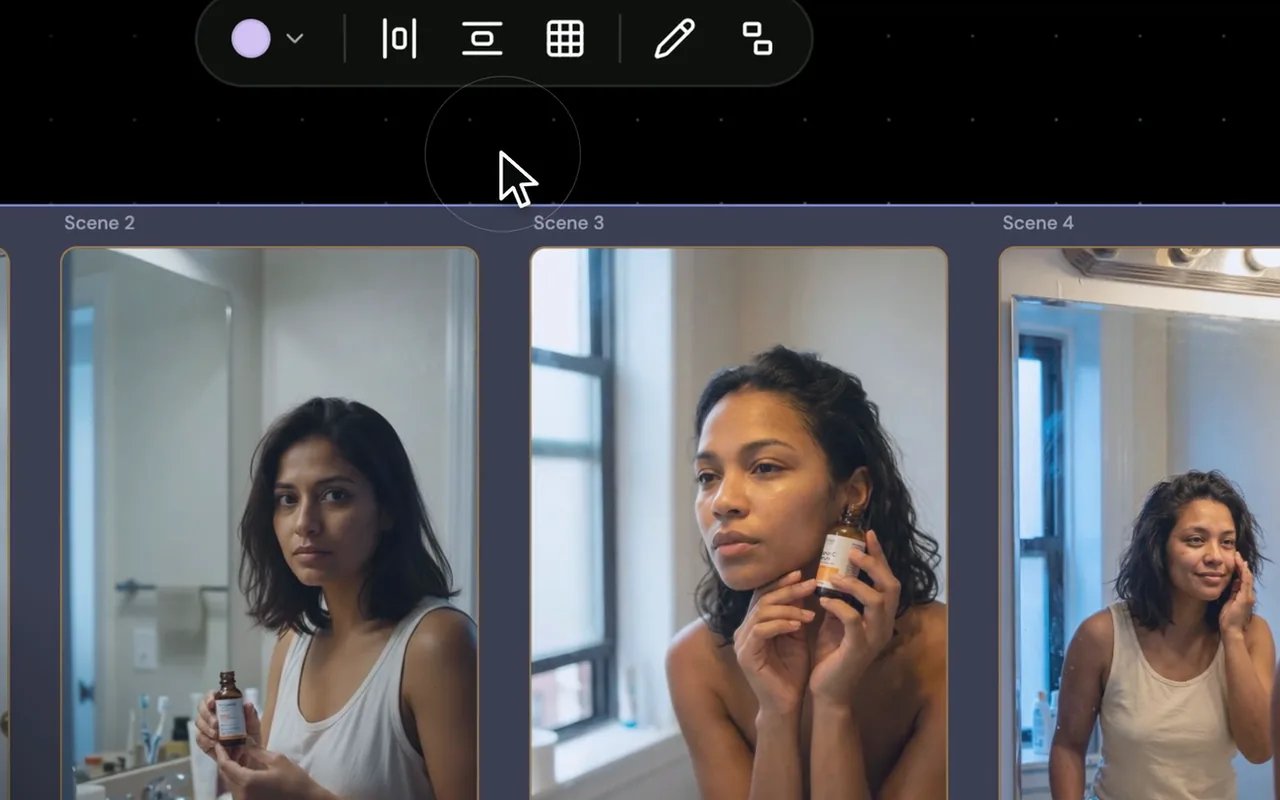
Frame a set of takes, call it “Hero shots”, give it a color and move it as one.
Snap guides
Cards line up with their neighbours as you drag, so the board reads cleanly.
Locks
Lock a card or a group once it’s approved, so nothing gets nudged by accident.
Copy, paste and duplicate
Duplicate a card or a note to try a variant right next to the original.
03Mark up
Notes, ink and stickers
Say what you mean on the work itself instead of in a separate doc.
Sticky notes
Write hooks, script lines and CTAs next to the shots they belong to, in any color.
Pen, highlighter, shapes and arrows
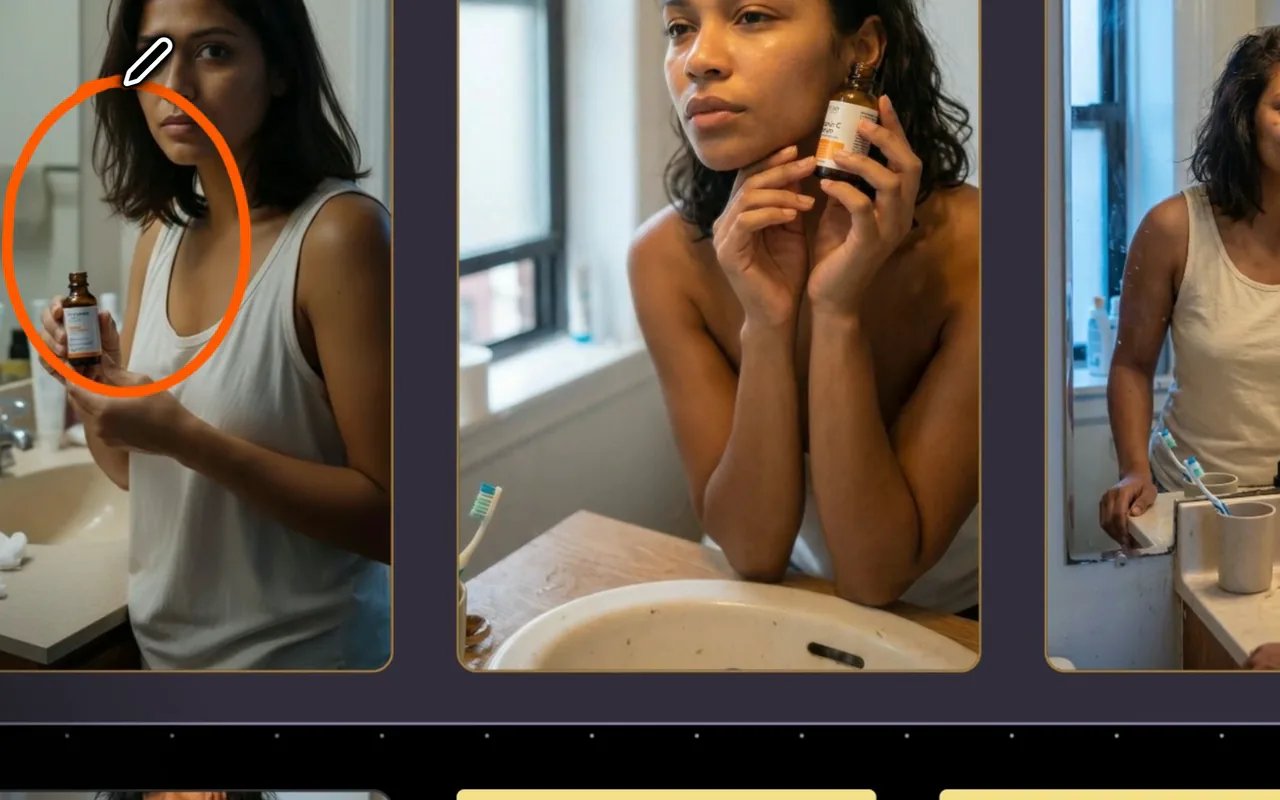
Circle the product, draw an arrow from a note to a frame, highlight the line in a brief that matters.
Stickers
React to a take in one click — a heart for a favorite, a flame for the one to ship.
04Discuss
Feedback, pinned in context
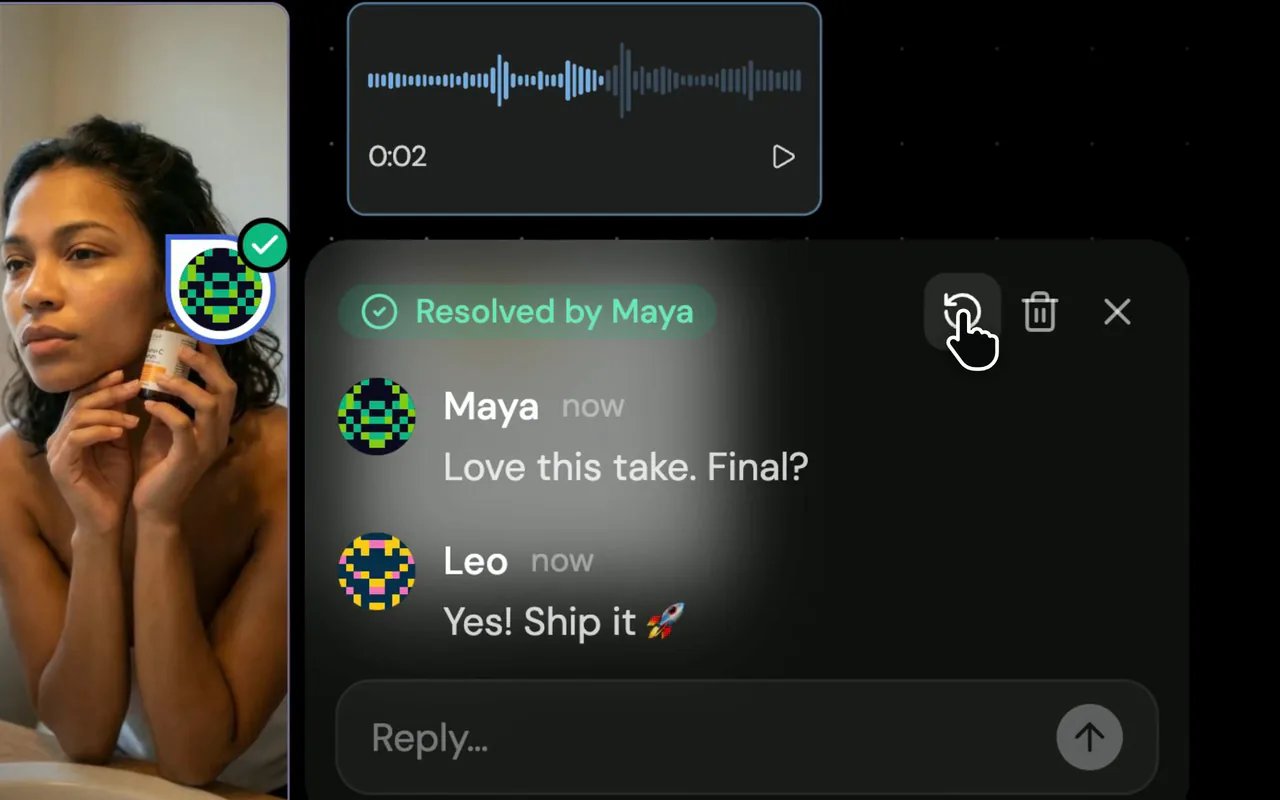
Comment threads sit on the exact card they’re about, so nobody has to ask which version you meant.
Threads with replies
Pin a comment to any card and keep the whole conversation there.
Resolve what’s done
Resolve a thread once it’s settled, and its pin gets out of the way.
Unread at a glance
New replies stand out, so you see what changed since you last looked.
05Review
Preview at full size, download in one go
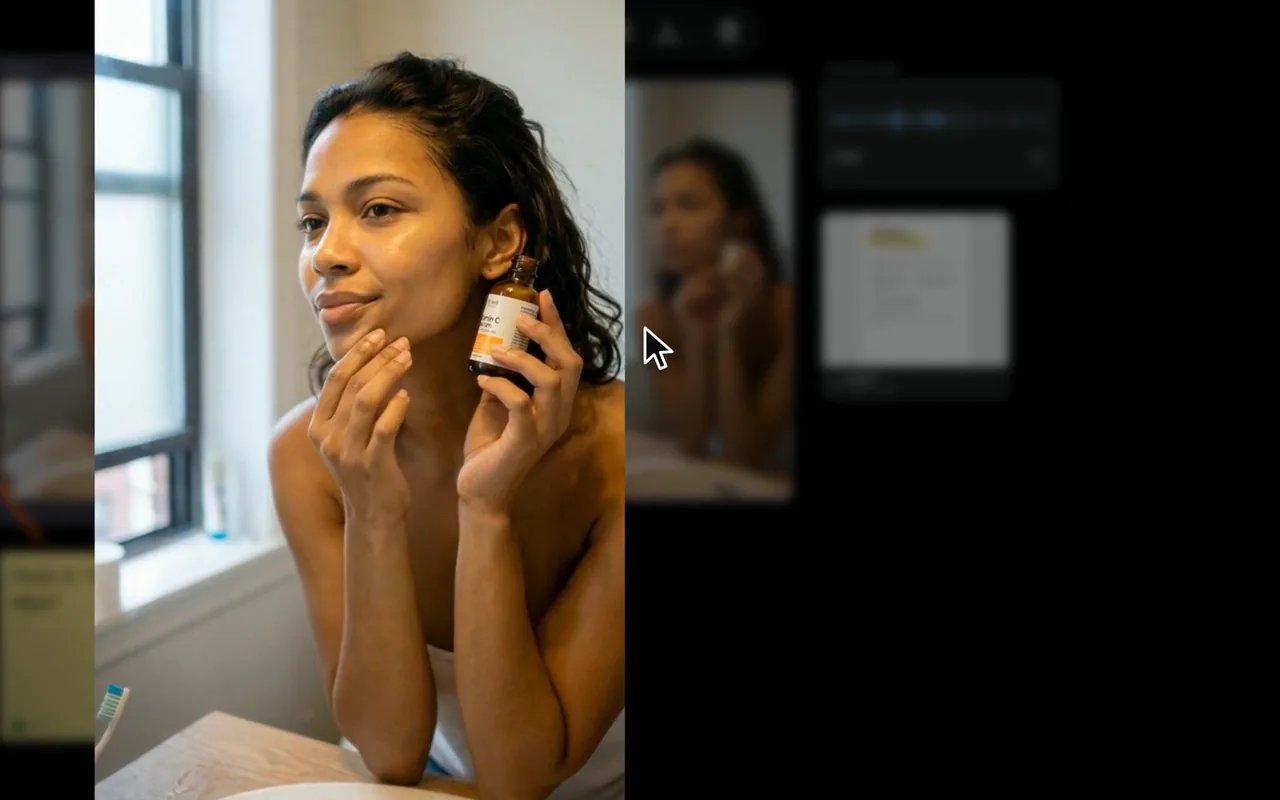
Check every frame at full resolution before sign-off, then take the selects with you.
Full-size preview
Open any image or video at full size without leaving the board.
Download as a ZIP
Select cards or whole groups and download their media in one file, for the edit or the ad account.
06Share
Share a link, review together
Send the board’s link to your team or your client. Everyone sees the same board, and you stay in charge of it.
You, the owner
- Send results from rooms and upload files
- Arrange, group, lock and draw
- Resolve comment threads
Anyone with the link
- Add sticky notes and stickers
- Start and reply to comment threads
- Move and edit only what they added
People you share a board with see the work — never your prompts, your models or the rooms it came from.
Use cases
Built for how ad teams review work
- 01
Client review rounds
One link per round. Feedback lands on the exact take, and approved concepts get locked.
- 02
Concept moodboards
Gather references, past winners and fresh takes for a campaign before you brief the Room Agent.
- 03
Storyboards and shot lists
Lay scenes out in order, with the script, the voiceover and the brief next to the frames.
- 04
Final sign-off
Group the finals, resolve the last threads and download everything for the ad account.
Shortcuts
Every tool is one key away
On Windows, use Ctrl wherever you see ⌘.
- SelectV
- Sticky noteN
- CommentC
- LinkL
- Group frameF
- PenP
- HighlighterH
- EraserE
- ShapesS
- Group selection⌘G
- Duplicate⌘D
- Lock⇧⌘L
- Undo⌘Z
FAQ
Questions about project boards
What is a project board in ModelRoom?
A project board is a shared canvas that comes with every ModelRoom project. You send images and videos to it from any room in the project, add files, links and notes, and review the work with your team or clients through one link.
Does sending a result to a board change my room?
No. The board holds a snapshot of the result. The room, its nodes and their generations stay exactly as they were.
Who can edit a project board?
The project owner arranges the board: sends results, uploads files, groups, locks and draws. Anyone you share the link with can add their own sticky notes, stickers and comments, and move or edit only what they added.
Can people I share a board with see my prompts?
No. A board shows the work itself. Your prompts, your models and the rooms a result came from are not shared.
What can I put on a board?
Results from your rooms, plus uploaded images, videos up to 90 MB, audio, PDFs and text files, and YouTube, Vimeo, Spotify and SoundCloud links that play right on the board.
Do project boards use credits?
No. Nothing on a board generates, so arranging, commenting and sharing never spend credits.
How do I open a project’s board?
Open a project and choose Board, or pick Open board from the project card’s menu. Inside a room, open the menu on the room’s title and choose the board, or use Send to board on any result.
Can I download everything on a board?
Yes. Select cards or whole groups and download their media as one ZIP, or download a single card.
Watch
See project boards in action
A 72-second tour of a real board: collecting takes from a room, organizing them, marking them up, trading feedback and sharing the link.
Chapters
Put your next review on a board
Open any project, choose Board and send it your first take.